
Key Takeaways
- Updating your Epson printer firmware helps improve performance, reliability, and compatibility with the latest devices.
- You can update your printer in two official ways:
- Through the Epson Smart Panel app on your smartphone.
- Directly from the printer’s control panel.
- Keep your printer connected to a stable Wi-Fi network during the update.
- Never turn off the printer or disconnect the power while the firmware is installing.
- If the update fails, restarting the printer and checking your internet connection often resolves the issue.
- Firmware updates can fix known software bugs, improve security, and enhance printer functionality.
How to Update Epson Printer Firmware (2026)
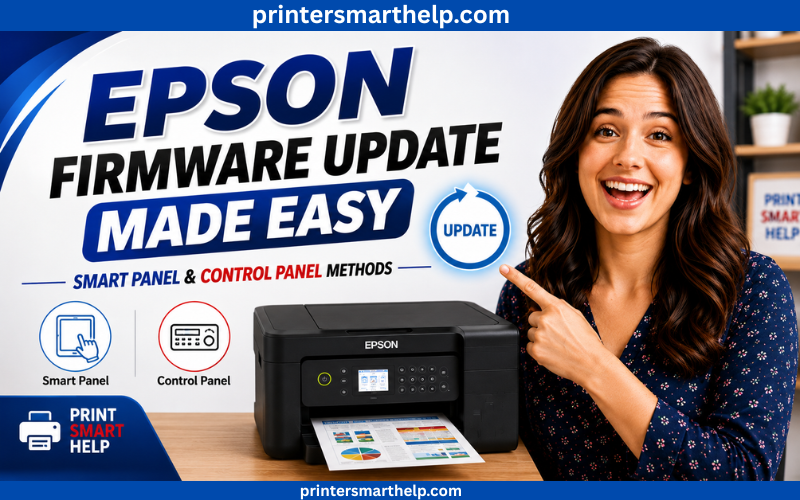
Keeping your Epson printer’s firmware up to date is one of the easiest ways to maintain smooth performance and prevent unexpected issues. Firmware is the software built into your printer that controls how it operates. Epson periodically releases firmware updates to fix bugs, improve stability, strengthen security, and support new features.
Whether you own an Epson EcoTank, WorkForce, Expression, or another compatible model, updating the firmware only takes a few minutes. In this guide, you’ll learn two simple methods to install the latest firmware, along with solutions to common update problems.
Why Should You Update Epson Printer Firmware?
Many users only update their printer when something goes wrong. However, installing the latest firmware regularly offers several benefits.
Updating your printer firmware can:
- Improve printer performance
- Fix software bugs and errors
- Increase printing reliability
- Improve Wi-Fi connectivity
- Enhance security
- Add compatibility with newer operating systems
- Support new printer features released by Epson
If your printer is working normally, you don’t necessarily need to check for updates every week. However, it’s a good idea to install official Epson firmware updates when they become available.
Before You Start
Before beginning the update process, make sure the following requirements are met:
- Your printer is turned on.
- The printer is connected to a stable Wi-Fi network.
- Your internet connection is working properly.
- The printer has enough power, or it is plugged into a reliable power outlet.
- Do not turn off the printer while the firmware update is in progress.
These simple checks help prevent interruptions during installation.
Method 1: Update Epson Firmware Using the Epson Smart Panel App
If you use your printer with a smartphone, this is the easiest update method.
Step 1: Connect Your Printer
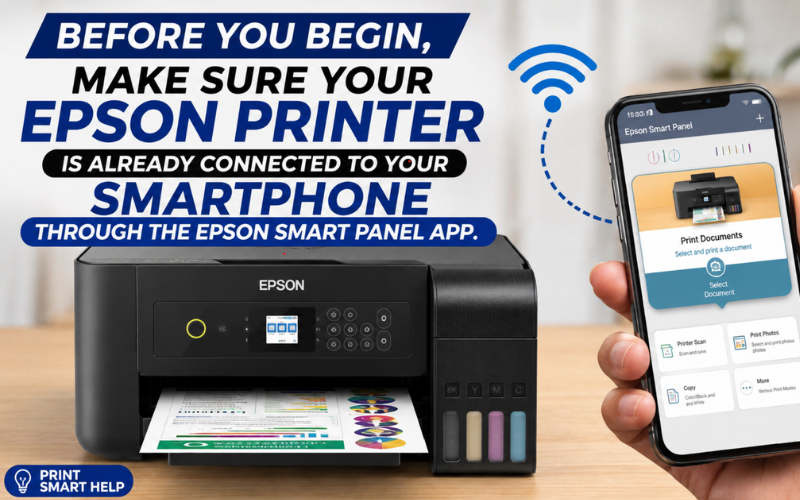
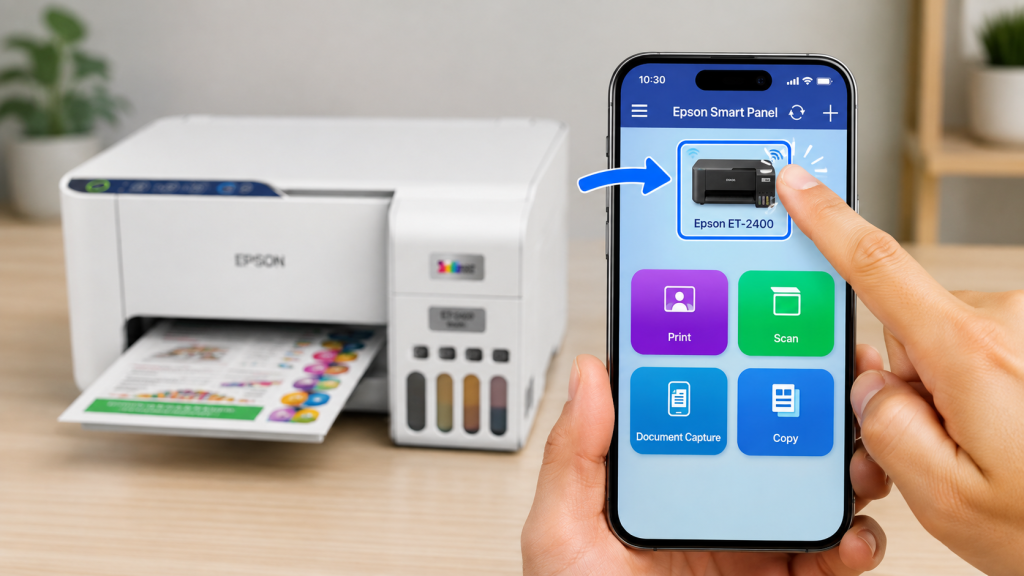
Ensure your Epson printer is already connected to the Epson Smart Panel app.
If the printer appears in the app, you’re ready for the next step.
Step 2: Open the Epson Smart Panel App
Launch the Epson Smart Panel app on your smartphone.
Tap your printer icon to open its settings.
Step 3: Select Firmware Update
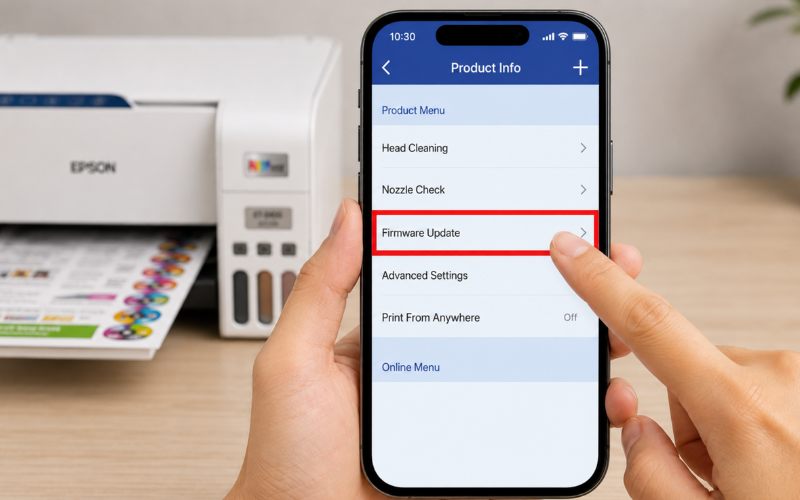
Scroll through the available options.
Tap Firmware Update.
If a newer firmware version is available, the app will display it.
Step 4: Install the Update
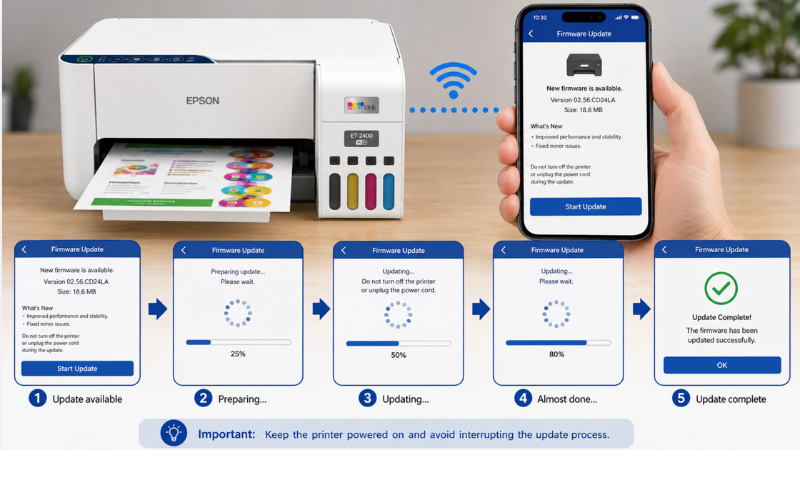
Follow the on-screen instructions.
Wait patiently while the firmware downloads and installs.
Important: Never close the app or turn off the printer during the update.
Step 5: Verify the Update
After the update finishes, the printer may restart automatically.
Print a test page or check your printer’s settings to confirm everything is working properly.
Method 2: Update Epson Firmware Using the Printer Control Panel
If you don’t have access to the Smart Panel app, you can install the firmware directly from your printer.
Step 1: Open Settings
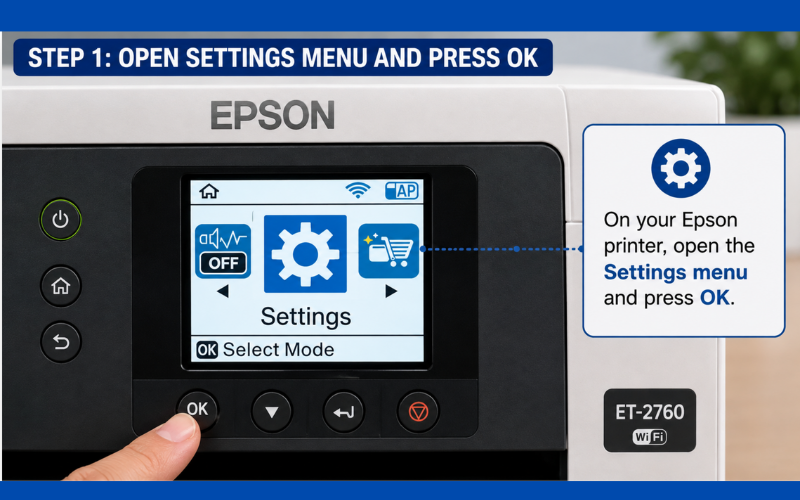
From the printer’s control panel, open Settings.
Press OK.
Step 2: Select Firmware Update
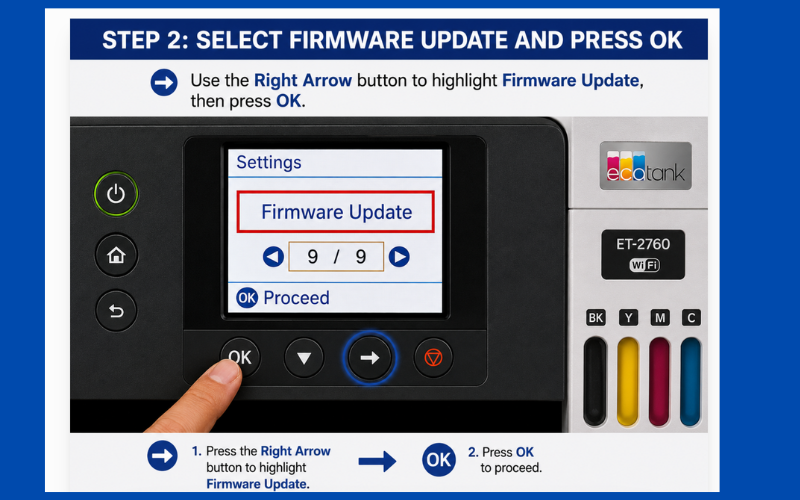
Use the Right Arrow button to find Firmware Update.
Press OK.
Step 3: Start the Update
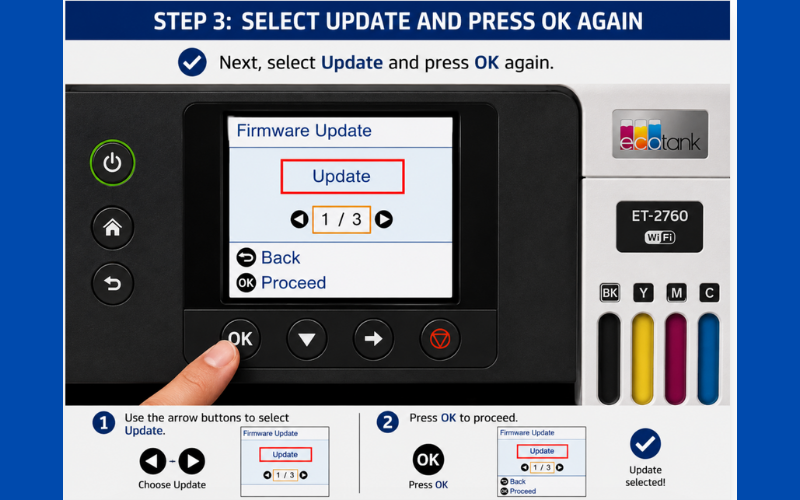
Select Update.
Press OK again.
Step 4: Confirm the Update
When the confirmation screen appears, press OK.
The printer will begin downloading and installing the latest firmware.
Step 5: Wait for Completion
The update may take several minutes.
Do not disconnect the power or restart the printer.
Once finished, the printer will display a confirmation message.
What to Do If the Firmware Update Fails
If your firmware doesn’t update successfully, don’t panic. Try these troubleshooting steps.
Check Your Internet Connection
A weak or unstable Wi-Fi connection is one of the most common reasons firmware updates fail.
Restart your router if necessary and reconnect the printer.
Restart the Printer
Turn the printer off.
Wait about 30 seconds.
Turn it back on and try the update again.
Reconnect to Wi-Fi
If your printer has lost its network connection, reconnect it before starting another update.
Update the Epson Smart Panel App
Using an outdated version of the app may prevent firmware updates.
Install the latest version from your device’s app store.
Try the Control Panel Method
If the smartphone update doesn’t work, use the printer’s built-in firmware update option instead.
Make Sure the Printer Stays Powered On
Power interruptions during installation may cause the update to fail.
Keep the printer plugged into a stable power source.
Tips for a Successful Firmware Update
Follow these recommendations for the best results.
- Use a reliable Wi-Fi connection.
- Avoid updating during internet outages.
- Keep your smartphone close to the printer.
- Never unplug the printer while updating.
- Wait until the update finishes completely.
- Restart the printer after the installation if prompted.
Frequently Asked Questions
How do I know if my Epson printer needs a firmware update?
Your Epson Smart Panel app or printer may notify you when a new firmware version is available.
Is updating Epson printer firmware safe?
Yes. Firmware updates provided by Epson are designed to improve printer performance and fix known software issues.
How long does an Epson firmware update take?
Most firmware updates finish within a few minutes, depending on your internet speed and printer model.
Can I use my printer during a firmware update?
No. Wait until the installation is complete before printing or changing printer settings.
What happens if I turn off my printer during the update?
Interrupting the firmware installation may cause the update to fail or leave the printer temporarily unusable until the update is completed correctly.
Can I update firmware without the Epson Smart Panel app?
Yes. Many Epson printers allow firmware updates directly from the printer’s control panel.
Why can’t my printer find a firmware update?
Possible reasons include:
- No update is currently available.
- The printer isn’t connected to Wi-Fi.
- The internet connection is unstable.
- The printer model doesn’t support online firmware updates.
Does firmware update improve print quality?
Firmware updates primarily improve software performance, reliability, and compatibility. While they may resolve issues affecting print quality, they do not replace routine maintenance such as printhead cleaning or nozzle checks.
Final Thoughts
Keeping your Epson printer firmware updated is a simple but important maintenance task. Whether you choose to update using the Epson Smart Panel app or directly from the printer’s control panel, the process only takes a few minutes and can help prevent software-related issues in the future.
If you experience problems during the update, follow the troubleshooting steps in this guide before trying again. Most firmware update issues are caused by network interruptions or temporary connection problems and can be resolved with a few basic checks.
At Print Smart Help, we’re committed to making printer setup, troubleshooting, and maintenance easy to understand. Explore our other Epson printer guides for solutions to Wi-Fi issues, printing errors, driver installation, and much more.