

The Epson EcoTank ET-5850 is designed to print, scan, and copy over a wireless network, making it easy to use from multiple computers and mobile devices. However, like any WiFi-enabled printer, it can sometimes refuse to connect to your wireless network or lose the connection unexpectedly.
If your Epson ET-5850 won’t connect to WiFi, don’t panic. In most cases, the problem isn’t caused by a faulty printer. Instead, it usually comes down to incorrect network settings, router compatibility, an outdated password, or a simple communication issue between the printer and your router.
The good news is that most WiFi problems can be fixed in just a few minutes.
This guide walks you through every troubleshooting method, starting with the simplest fixes and moving on to more advanced solutions if needed.
Common Signs of WiFi Problems
Your Epson ET-5850 may be experiencing a wireless connection issue if you notice any of these symptoms:
- The printer cannot find your WiFi network.
- The printer shows “Connection Failed.”
- The printer repeatedly disconnects from WiFi.
- Your computer cannot detect the printer.
- Mobile devices cannot print.
- The printer displays network-related error codes.
- Printing over USB works, but wireless printing does not.
If any of these sound familiar, follow the steps below one by one.
Step 1: Make Sure Your WiFi Is Working
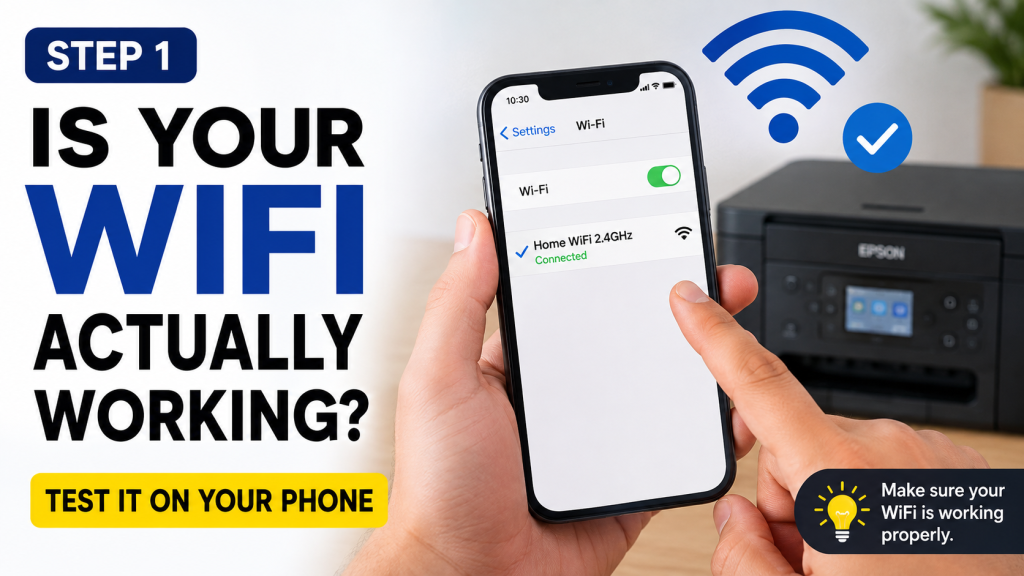
Before changing any printer settings, confirm that your wireless network is actually working.
Take your smartphone or laptop and connect it to the same WiFi network you want the printer to use.
If your phone cannot browse the internet, the issue is probably with your router or internet connection rather than the printer.
If your WiFi works normally on other devices, continue with the next step.
Restart Your Router and Printer
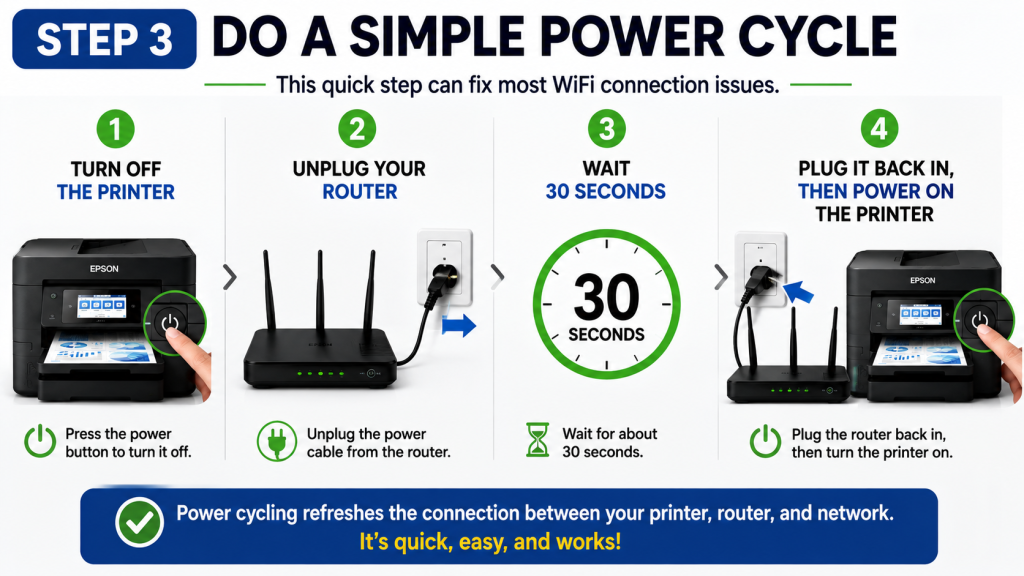
Temporary network glitches are surprisingly common.
Try this simple restart process:
- Turn off the Epson ET-5850.
- Unplug your WiFi router.
- Wait about 30 seconds.
- Plug the router back in.
- Wait until the WiFi light becomes stable.
- Turn the printer back on.
This refreshes the connection between the printer and your network and often resolves temporary communication problems.
Step 2: Verify That You’re Using a 2.4 GHz WiFi Network
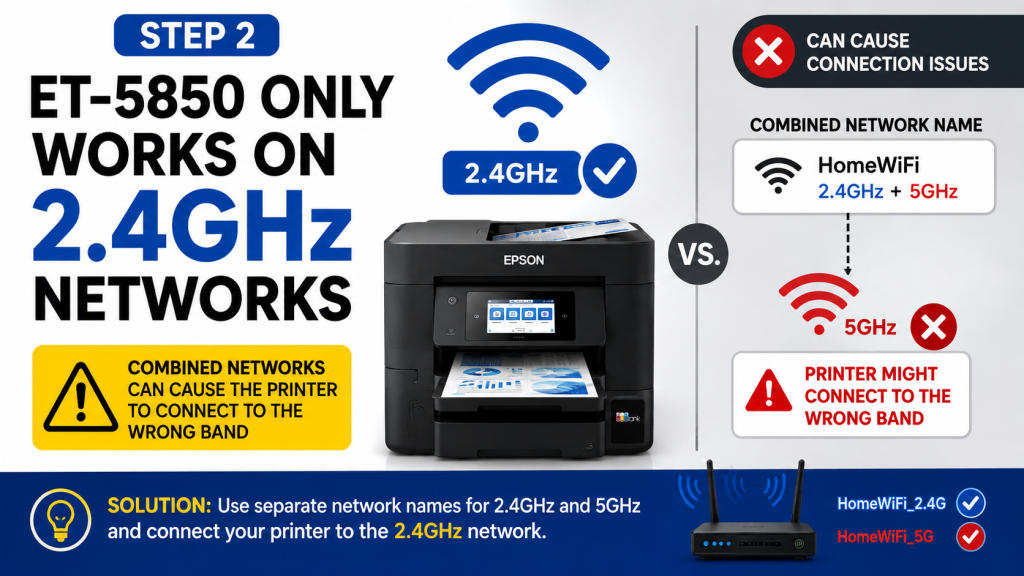
This is one of the biggest reasons the Epson ET-5850 refuses to connect.
Although many modern routers broadcast both 2.4 GHz and 5 GHz wireless networks, the printer is designed to work with 2.4 GHz WiFi.
If your router shows two network names, you’ll usually see something like:
- HomeWiFi_2.4G
- HomeWiFi_5G
Always choose the 2.4 GHz network when connecting the printer.
What If Your Router Uses One Network Name?
Many newer routers combine both frequencies into one WiFi name using a feature called band steering.
Sometimes the printer struggles to connect in this situation.
You can often solve the problem by:
- Separating the 2.4 GHz and 5 GHz networks in your router settings.
- Temporarily disabling the 5 GHz band during printer setup.
- Connecting the printer first, then enabling both bands again.
Step 3: Print the Network Connection Report
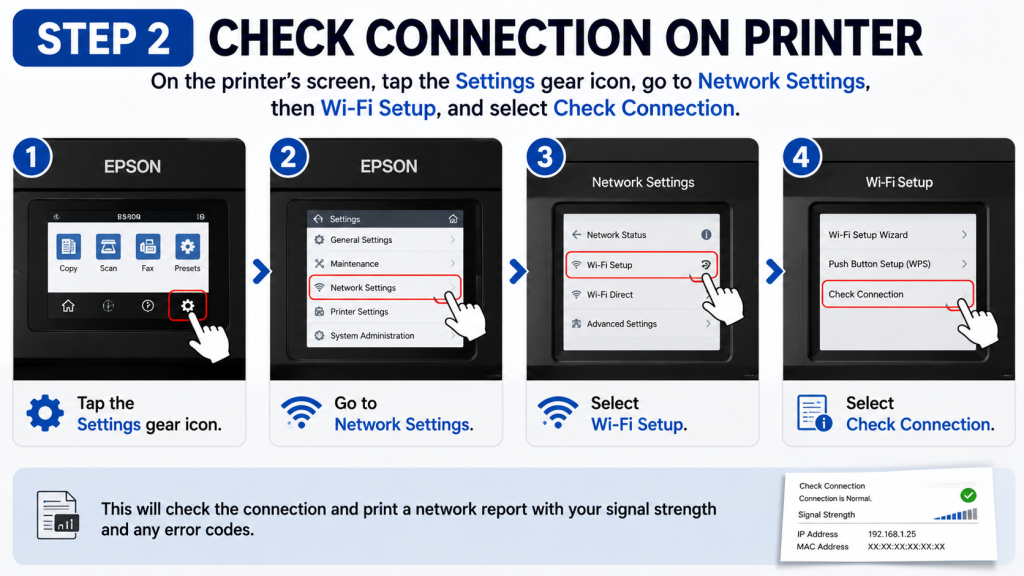
The ET-5850 includes a built-in diagnostic tool that checks the wireless connection and prints a detailed report.
To print it:
Settings → Network Settings → Wi-Fi Setup → Check Connection
The printer will print a Network Connection Report.
This report includes:
- Signal strength
- IP address
- Connection status
- MAC address
- Network name (SSID)
- Error codes
- Troubleshooting suggestions
Pay close attention to any error codes listed on the report. Different codes point to different problems, making it much easier to identify the real cause of the issue.
If no report prints or the report indicates a failed connection, continue with the next troubleshooting step.
Step 4: Run the WiFi Setup Wizard Again
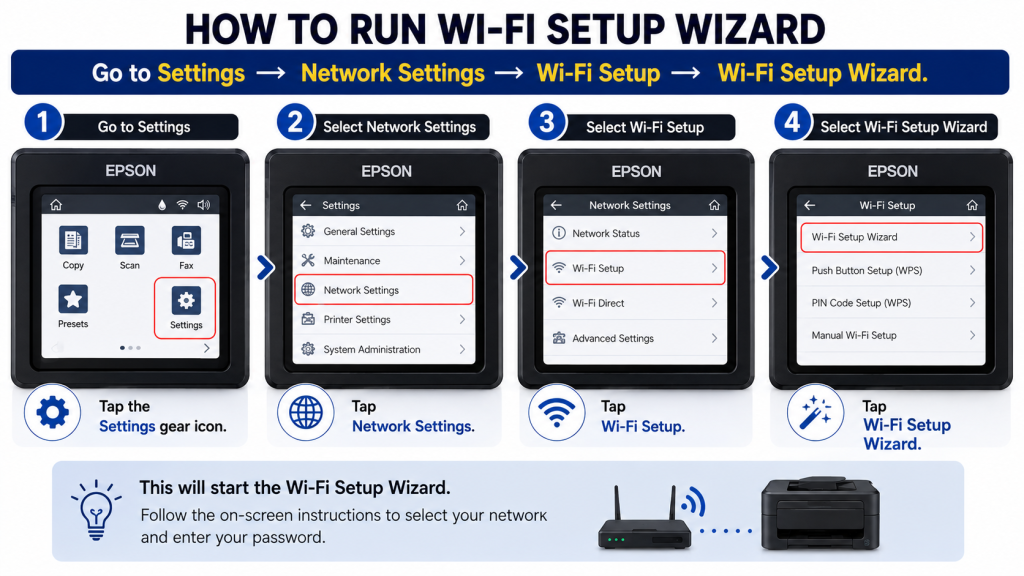
Sometimes the quickest solution is simply reconnecting the printer from scratch.
On the printer, open:
Settings → Network Settings → Wi-Fi Setup → Wi-Fi Setup Wizard
The printer will scan for available wireless networks.
Choose your home WiFi network.
Again, make sure you select the 2.4 GHz version if your router displays both frequencies.
Next, carefully enter your wireless password.
Remember:
- Passwords are case-sensitive.
- Double-check uppercase and lowercase letters.
- Verify numbers and special characters.
- Avoid extra spaces.
After selecting OK or Confirm, give the printer a minute to establish the connection.
If successful, you’ll see a confirmation message indicating the printer has joined the network.
Step 5: Connect Using WPS
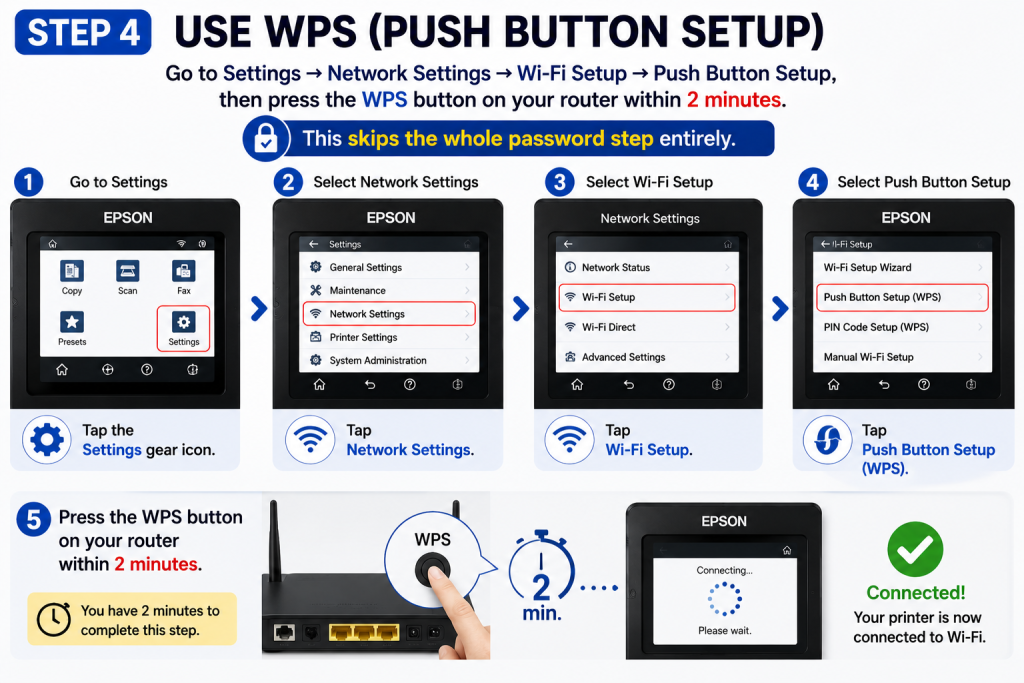
If entering long passwords is inconvenient, you can use WPS (Wi-Fi Protected Setup), provided your router supports it.
Open:
Settings → Network Settings → Wi-Fi Setup → Push Button Setup
Then:
- Press the WPS button on your router.
- Do this within two minutes.
- Wait while the printer and router establish the connection automatically.
This method skips manual password entry altogether.
Not all routers include a physical WPS button, so if yours doesn’t, simply continue to the next troubleshooting step.
Step 6: Reset the Printer’s Network Settings
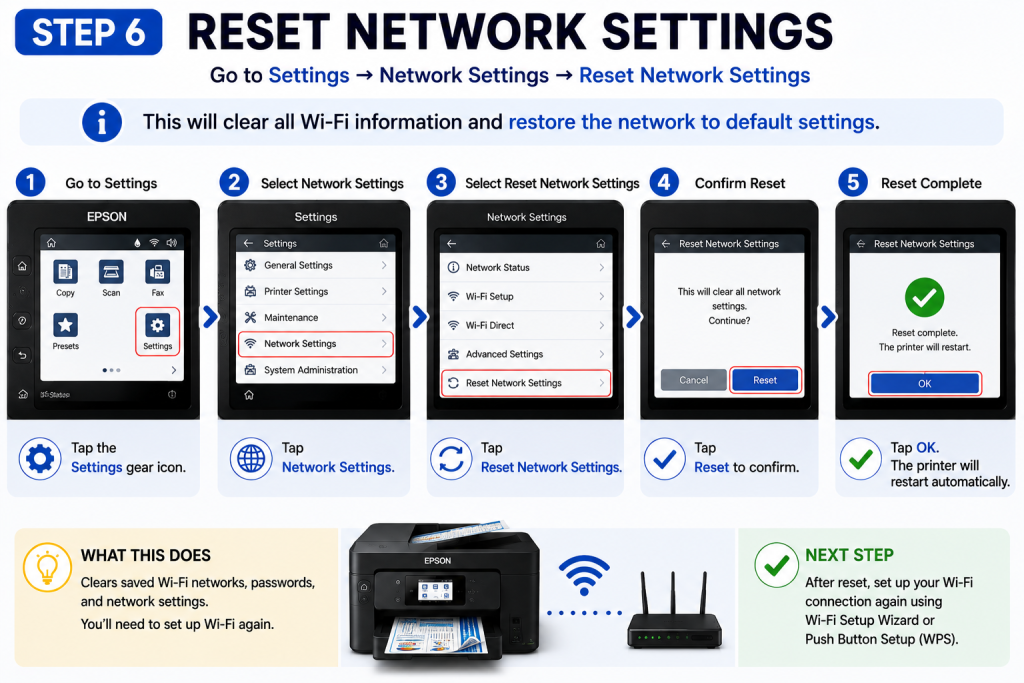
If you’ve tried several different wireless networks or changed router settings multiple times, the printer may still be using outdated network information.
Resetting the network settings clears all saved WiFi data and lets you start fresh.
Go to:
Settings → Network Settings → Reset Network Settings
Confirm the reset.
The printer will erase its saved wireless configuration.
Once finished, run the Wi-Fi Setup Wizard again and reconnect the printer to your wireless network using the correct password.
Step 7: Check Whether MAC Filtering Is Enabled
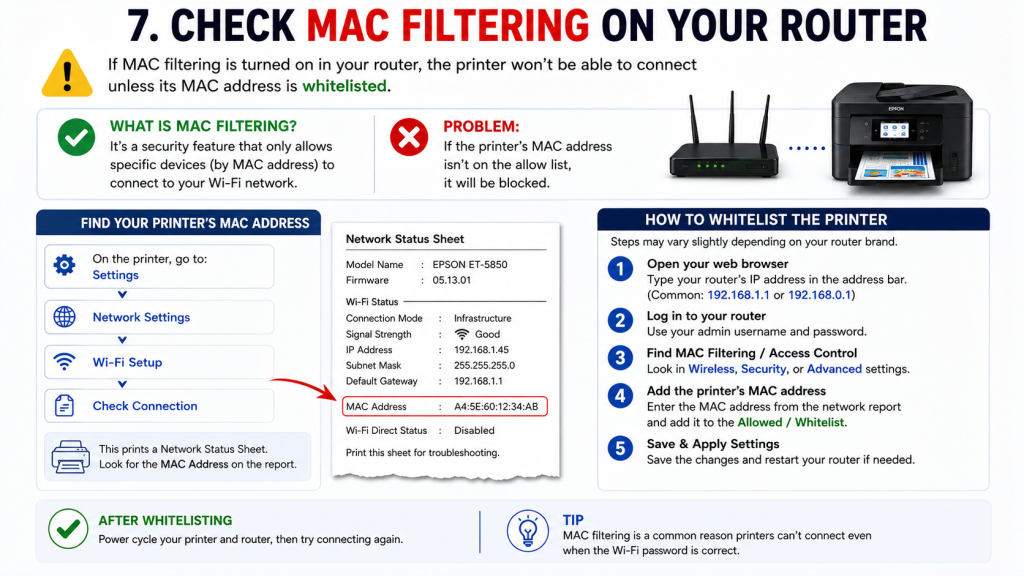
If your printer still refuses to connect after resetting the network settings, your router may be blocking it.
Many routers include a security feature called MAC Filtering or Access Control. When enabled, only devices whose MAC addresses are on the approved list can connect to the network.
If the Epson ET-5850 isn’t on that list, the router will reject the connection even if the WiFi password is correct.
How to Check
- Print the Network Connection Report if you haven’t already.
- Locate the printer’s MAC Address on the report.
- Log in to your router’s admin page using a web browser.
- Open the Wireless, Security, or Access Control section.
- Look for MAC Filtering, MAC Address Filter, or Access Control.
- If it’s enabled, add the printer’s MAC address to the allowed devices list.
- Save the changes and restart the router if required.
After updating the settings, try reconnecting the printer.
Step 8: Did You Recently Change Your WiFi Password?
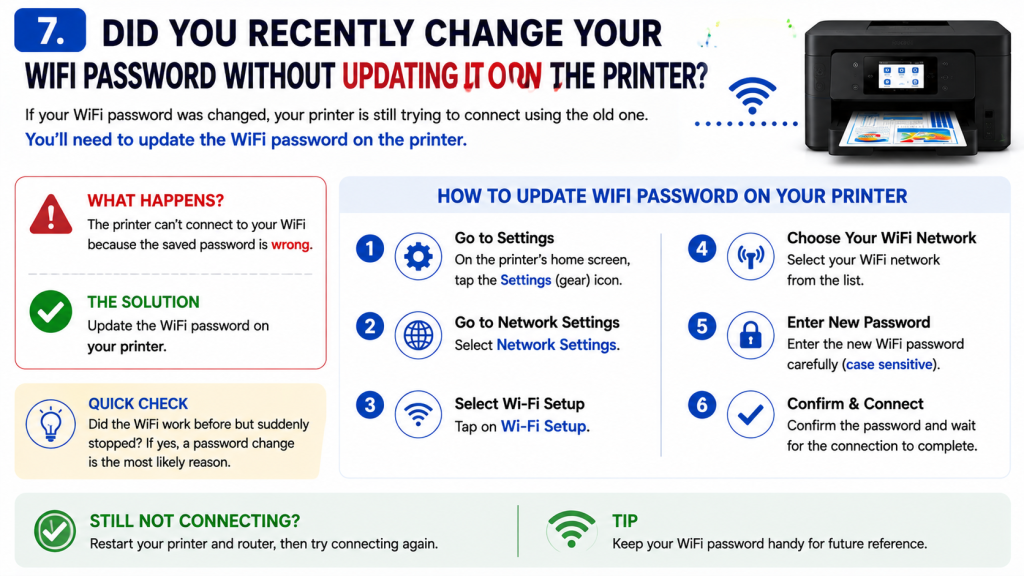
This is another very common cause of connection failures.
If you changed your wireless password recently, the printer is still trying to use the old one.
Unlike phones or laptops, printers do not automatically update saved WiFi passwords.
Update the Password on the Printer
- Open Settings.
- Select Network Settings.
- Choose Wi-Fi Setup.
- Run the Wi-Fi Setup Wizard.
- Select your home network.
- Enter the new WiFi password carefully.
- Confirm and wait for the connection to complete.
Remember that WiFi passwords are case-sensitive. A single incorrect capital letter or symbol can prevent the printer from connecting.
Step 9: Update Your Router’s Firmware
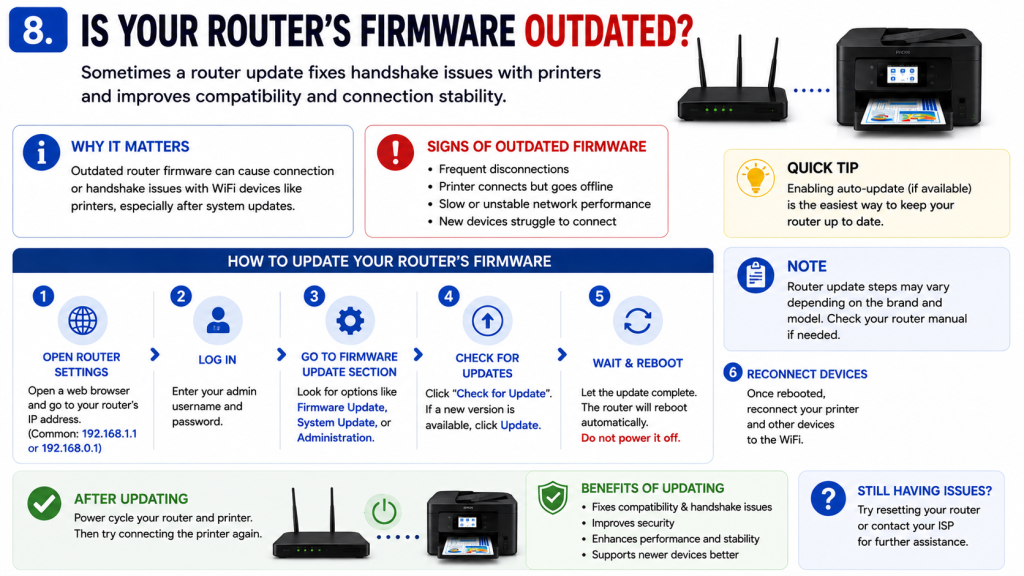
Sometimes the printer is working correctly, but the router’s software is outdated.
Older router firmware can cause communication or “handshake” problems with newer wireless devices, including printers.
Signs Your Router May Need an Update
- Devices disconnect randomly.
- The printer connects but frequently goes offline.
- New devices struggle to join the network.
- Internet works, but WiFi devices behave unpredictably.
How to Update the Firmware
The exact steps depend on your router brand, but the process is generally similar.
- Open a web browser.
- Log in to your router.
- Look for Firmware Update, System Update, or Administration.
- Check for available updates.
- Install the latest firmware if available.
- Allow the router to restart completely.
After the update finishes, reconnect the Epson ET-5850 and test the connection again.
Additional Troubleshooting Tips
If the printer is still not connecting, try these additional solutions.
Move the Printer Closer to the Router
Weak WiFi signals often lead to unstable printer connections.
Try moving the printer into the same room as the router during setup.
After the connection is established, you can usually move it back to its normal location.
Reduce Wireless Interference
Cordless phones, microwave ovens, baby monitors, Bluetooth devices, and thick walls can interfere with wireless signals.
Keeping the printer away from these sources may improve connection reliability.
Restart Your Computer
Sometimes Windows or macOS still stores an old printer connection.
Restart your computer after reconnecting the printer to refresh the network settings.
Remove and Reinstall the Printer
If the printer connects successfully to WiFi but your computer still cannot find it, remove the printer from your computer and add it again.
Windows and macOS usually detect the printer automatically once it is connected to the network.
Update the Epson Printer Driver
An outdated driver can sometimes prevent your computer from communicating properly with the printer.
Installing the latest driver ensures better compatibility with recent Windows and macOS updates.
Restart the Print Spooler (Windows)
If the printer is connected but print jobs remain stuck in the queue:
- Press Windows + R.
- Type services.msc and press Enter.
- Find Print Spooler.
- Right-click it and select Restart.
Then try printing again.
Frequently Asked Questions
Why won’t my Epson ET-5850 find my WiFi network?
The printer may be out of range, the router may only be broadcasting 5 GHz, or the wireless signal may be too weak.
Does the Epson ET-5850 support 5 GHz WiFi?
The printer is designed to connect to 2.4 GHz WiFi. If your router broadcasts both bands, choose the 2.4 GHz network during setup.
Why does my printer keep disconnecting from WiFi?
Common causes include weak signal strength, router interference, outdated router firmware, or unstable network settings.
What happens when I reset network settings?
Resetting network settings removes saved WiFi information, including passwords and network configuration. You’ll need to reconnect the printer afterward.
Can I connect the printer without entering a password?
Yes. If your router supports WPS, you can connect by pressing the WPS button instead of typing the WiFi password.
Where can I find my printer’s MAC address?
Print the Network Connection Report. The MAC address appears in the network information section.
Why does the printer say “Authentication Failed”?
This usually means the WiFi password is incorrect or has recently been changed.
My printer is connected to WiFi, but my computer can’t find it.
Restart your computer, reinstall the printer, update the printer driver, and make sure both devices are connected to the same wireless network.
Should I update my router’s firmware?
Yes. Firmware updates often improve stability, compatibility, and security while fixing wireless communication problems.
Is restarting the router really necessary?
Absolutely. A simple restart clears temporary network issues and is one of the easiest ways to resolve wireless connection problems.
Final Thoughts
Most Epson ET-5850 WiFi problems can be solved without replacing the printer or calling technical support. In many cases, the solution is as simple as connecting to the correct 2.4 GHz network, updating the saved WiFi password, restarting the router, or resetting the printer’s network settings.
Start with the basic checks before moving on to advanced troubleshooting. Working through each step in order helps eliminate the most common causes one by one and usually restores the wireless connection quickly.
If the problem continues after trying every solution in this guide, it’s worth checking your router settings or contacting Epson Support for model-specific assistance.
By following this guide carefully, you’ll have the best chance of getting your Epson ET-5850 back online and printing wirelessly again.