
Connecting a Samsung printer to WiFi lets you print from your laptop, desktop, tablet, or phone without keeping a USB cable connected. The setup is usually straightforward, but the steps can differ between Samsung printer models.
For example, many Samsung Xpress models have a Network → Wireless → WLAN Settings → Wizard option, while other models use a WPS button or a wireless setup program on Windows.
This guide explains the most common ways to connect a Samsung printer to WiFi and what to do if the printer refuses to connect.
What You Need Before Starting
Before changing any printer settings, have these things ready:
- Your Samsung wireless printer
- A working WiFi router
- Your WiFi network name, also called the SSID
- Your WiFi password
- A Windows computer if your printer needs USB-assisted setup
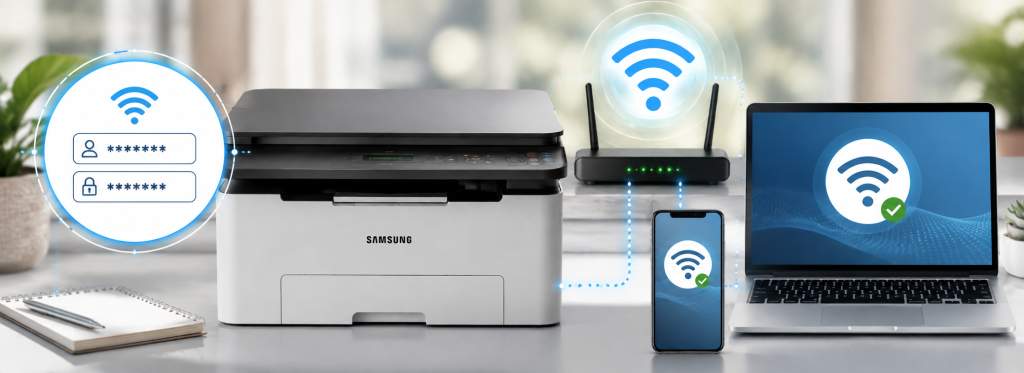
Make sure the printer is turned on and reasonably close to the router during the initial setup.
A quick example
Suppose your home WiFi is called HomeNet_5G and the password is BlueHouse2026.
When the printer searches for networks, you would select HomeNet_5G and enter the password exactly as it is configured on your router.
Method 1: Connect Samsung Printer Using the Wireless Setup Wizard
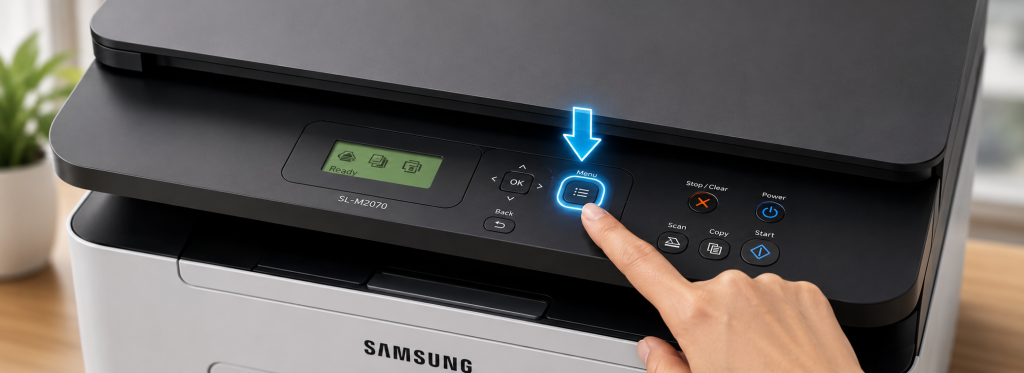
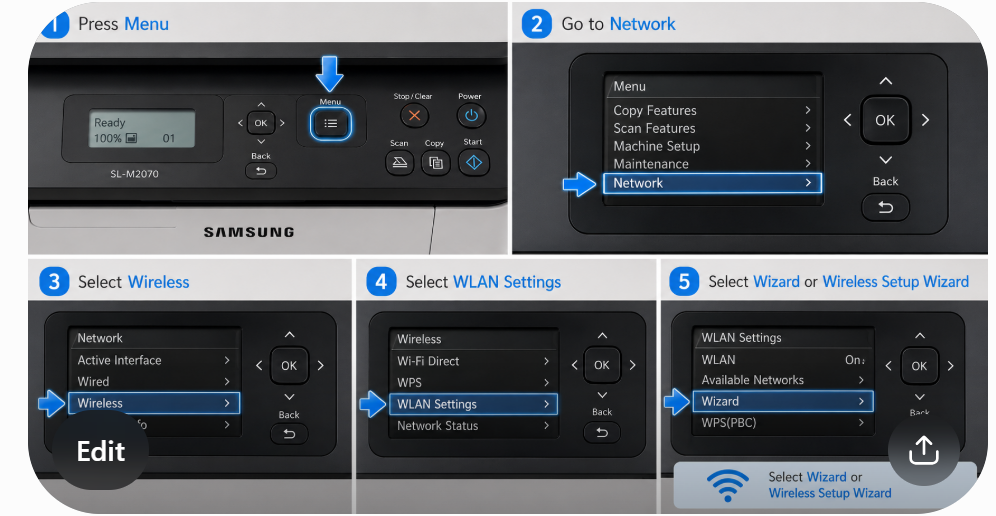
For Samsung models with a printer display and wireless network menu, the Wireless Setup Wizard is often the simplest option.
Samsung documentation for supported models lists the following path:
Menu → Network → Wireless → WLAN Settings → Wizard
Some models use slightly different wording, so don’t worry if your screen doesn’t look exactly the same.
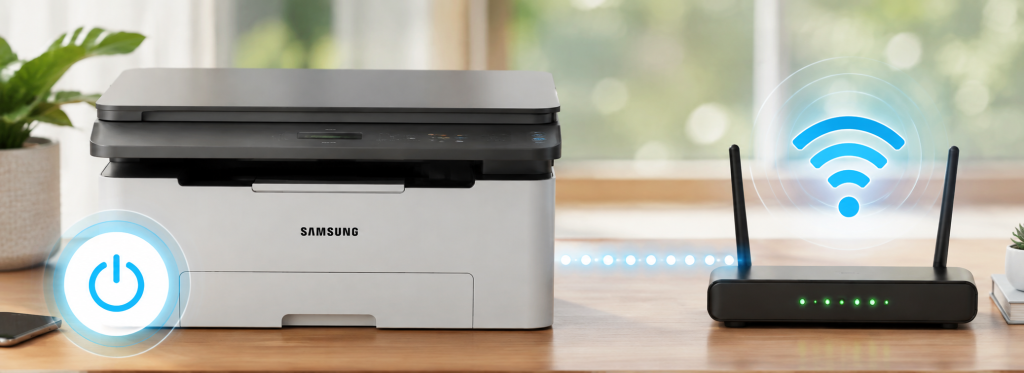
Step 1: Turn On the Printer
Turn on your Samsung printer and wait until it reaches the ready screen.
Also make sure your WiFi router is switched on.
Step 2: Open Network Settings
Press the Menu button on the printer.
Look for:
Network → Wireless → WLAN Settings
Then select Wizard.
On some touchscreen models, you may see Setup → Machine Setup → Network Setup → Wireless instead. Samsung notes that menu availability and names can vary by model.
Step 3: Choose Your WiFi Network
The printer will scan for nearby wireless networks.
Find your WiFi name in the list and select it.
For example, if your router broadcasts:
HomeNet_5G
select that network rather than a neighbor’s network with a similar name.
Step 4: Enter the WiFi Password
The printer will ask for the network security key or WiFi password.
Enter it carefully.
WiFi passwords are case-sensitive, so MyWiFi123 and mywifi123 are not the same.
Press OK, Connect, or the corresponding option on your printer.
Step 5: Wait for the Connection
Give the printer a few seconds to communicate with the router.
A successful connection may show Connected, display the network name, or activate the printer’s wireless indicator.
Samsung documentation describes the printer displaying a connection status and, on supported models, the access point SSID after a successful WPS connection.
Method 2: Connect a Samsung Printer Using WPS
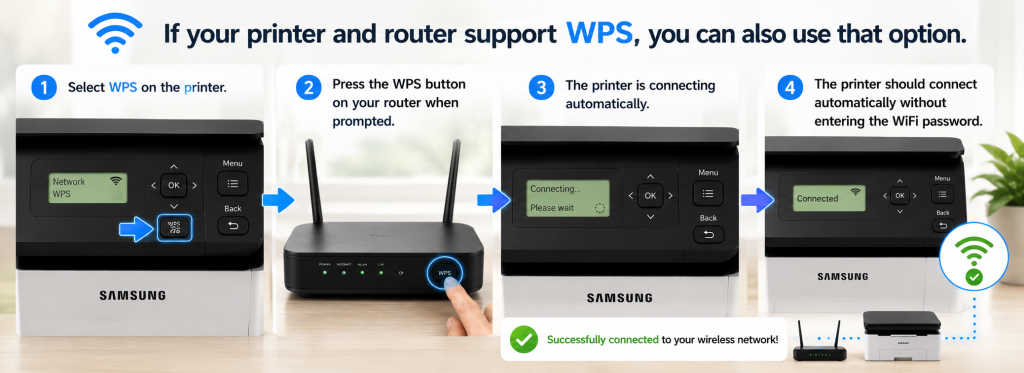
If your Samsung printer and router both support WPS, you may be able to connect without typing the WiFi password.
This can be particularly useful when entering a long password on a small printer display is difficult.
How WPS Setup Works
First, open the WPS option on the printer.
On supported Samsung models, WPS can be accessed through the wireless settings or by using the physical WPS button.
Then press the WPS button on your router.
The printer and router will attempt to establish the connection automatically. Samsung documentation describes this as Push Button Configuration (PBC).
Real-world example
Imagine you have a Samsung printer in your home office and the router is on the other side of the room.
Instead of typing a complicated password such as Office@WiFi#2026, you can use WPS if both devices support it.
Start WPS on the printer, press WPS on the router, and wait for the printer to confirm the connection.
Important: WPS is only available when supported by both the printer and router.
Method 3: Set Up Samsung Printer WiFi Using a USB Cable
Some Samsung printers are easier to configure through a Windows computer.
In this case, connect the printer temporarily to the computer using a USB cable and use the appropriate wireless setup program.
Samsung documentation describes a USB-assisted wireless setup where you select Wireless network connection, choose the wireless setup method, select your WiFi network, and enter the network password.
Once the wireless configuration is finished, the USB cable can be disconnected.
When is this method useful?
This method is helpful when:
- The printer doesn’t have a convenient display
- The wireless setup menu isn’t available
- WPS doesn’t work
- The printer isn’t easily detected during wireless setup
For example, an older Samsung Xpress printer may have only a few physical buttons. Using a Windows computer and temporary USB connection can make the initial WiFi configuration much easier.
How to Add the Samsung Printer to Windows
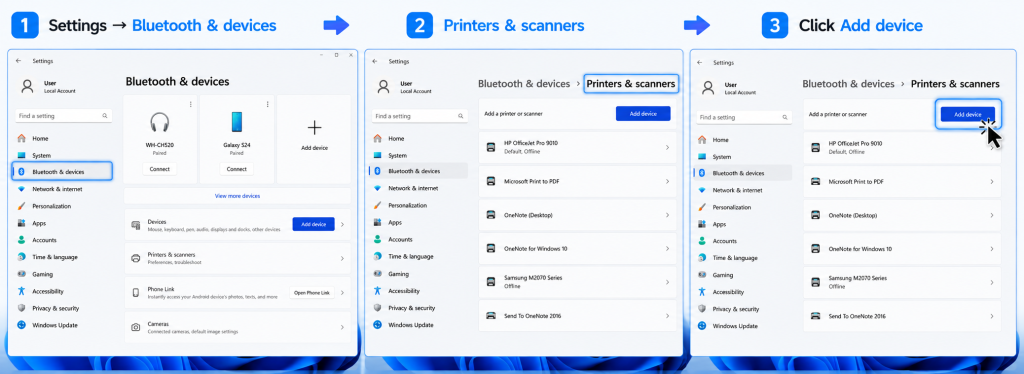
Connecting the printer to WiFi is only half of the process. Your computer also needs to recognize the printer.
On Windows 11:
Settings → Bluetooth & devices → Printers & scanners
Select Add device.
Windows will search for available printers.
When your Samsung printer appears, select it and follow the instructions on the screen.
If the printer doesn’t appear, check that your computer and printer are connected to the same local WiFi network.
Samsung documentation also notes that after establishing the wireless connection, the appropriate printer driver needs to be installed before printing from applications.
What If the Samsung Printer Is Not Showing Up?
This is one of the most common problems after connecting a printer to WiFi.
Try these checks in order.
Restart the Printer and Router
Turn off the printer.
Restart your WiFi router and wait for it to come back online.
Then turn the printer back on and try the wireless setup again.
Check the WiFi Name
Make sure you selected the correct SSID.
If your neighbor’s network is called HomeNet and yours is HomeNet_5G, selecting the wrong one will prevent the printer from connecting.
Samsung’s troubleshooting documentation specifically recommends checking the SSID when the selected network cannot be found.
Check the Password
If the printer finds your network but refuses the connection, re-enter the password.
Pay attention to:
- Capital letters
- Lowercase letters
- Numbers
- Special characters
- Spaces
Move the Printer Closer to the Router
During setup, place the printer closer to the router if possible.
A weak wireless signal can make the initial connection unreliable.
After the printer is successfully connected, you can move it back to its normal location.
What If the WiFi Network Does Not Appear?
If your WiFi name isn’t listed, first confirm that other devices can see the network.
For example, open WiFi settings on your phone and check whether the network appears.
If your phone sees the network but the Samsung printer doesn’t, check the printer’s wireless compatibility and model-specific instructions.
Some Samsung models also provide a Custom wireless configuration option where the SSID and security settings can be entered manually.
Samsung Printer Connected to WiFi but Not Printing
Sometimes the printer successfully connects to WiFi but still doesn’t print.
Start by checking Windows.
Go to:
Settings → Bluetooth & devices → Printers & scanners
Select your Samsung printer.
Make sure Windows has detected the correct printer and that it isn’t showing an offline status.
You can also print a test page.
If the printer was previously connected by USB, Windows may still be trying to use an old printer connection instead of the new wireless connection.
Removing the old printer entry and adding the network printer again can resolve this problem.
Can You Print From a Samsung Galaxy Phone?
Yes, wireless printing is possible from compatible Galaxy phones and tablets, but the printer needs to be configured for wireless printing first.
Samsung’s mobile support documentation notes that printers generally need to be configured for wireless use before printing from a Galaxy device.
Once the printer is connected to the network, make sure your phone is connected to the same WiFi network and use the available printing option for your device and printer.
Samsung Printer WiFi Troubleshooting Checklist
If you’re still unable to connect, work through this quick checklist:
- Make sure the printer supports WiFi.
- Turn on the printer and router.
- Check the WiFi name.
- Check the WiFi password.
- Try the Wireless Setup Wizard.
- Try WPS if both devices support it.
- Move the printer closer to the router.
- Restart the printer and router.
- Try USB-assisted wireless setup if your model supports it.
- Add the printer again in Windows.
The exact procedure can vary considerably between Samsung printer series, so the model number is important when a standard setup doesn’t work.
Frequently Asked Questions
How do I connect my Samsung printer to WiFi?
Open the printer’s wireless settings, select your WiFi network, enter the password, and wait for the connection to complete.
Where is WiFi setup on a Samsung printer?
On many supported models, go to Menu → Network → Wireless → WLAN Settings → Wizard. The menu can vary by model.
Can I connect my Samsung printer without a USB cable?
Yes. If your printer supports wireless setup or WPS, you can usually connect it directly to your router.
Can I use WPS to connect my Samsung printer?
Yes, if both your Samsung printer and WiFi router support WPS.
Why can’t my Samsung printer find my WiFi?
Check that the router is working, move the printer closer to it, and verify that your printer supports the wireless network you are trying to use.
Why does my Samsung printer say the WiFi password is wrong?
Re-enter the password carefully. Check uppercase letters, lowercase letters, numbers, and special characters.
Why is my Samsung printer connected to WiFi but offline on Windows?
Make sure the computer and printer are on the same network, then remove and add the printer again under Printers & scanners.
Can I connect an older Samsung printer to WiFi?
Many older Samsung wireless models support WiFi, but the setup method depends on the exact model. Some use WPS, while others use a USB-assisted wireless setup.
Do all Samsung printers have the same WiFi menu?
No. Menu names and wireless features vary between models.
Final Thoughts
Connecting a Samsung printer to WiFi usually takes only a few minutes when you have the correct network name and password.
For printers with a display, start with the Wireless Setup Wizard. If your printer and router support WPS, that can be an even quicker option. And if you’re working with an older model that doesn’t offer an easy wireless menu, a temporary USB connection to a Windows computer may be the better route.
The most important thing is to use instructions for your exact Samsung printer model, because wireless setup options aren’t identical across the Samsung range.
Need Printer Help?
If you’re still having trouble setting up your printer or fixing a wireless connection problem, you can call 1-888-765-0492 for printer assistance.
Related: Check your exact Samsung printer model’s manual before changing advanced network settings.