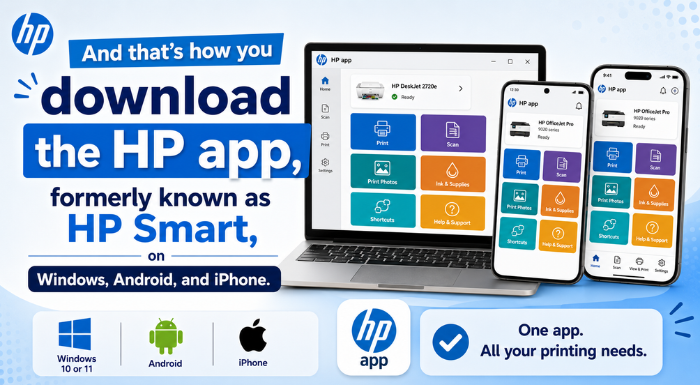

If you have an HP printer and you’re searching for the HP Smart app, you may notice something has changed. HP has introduced the HP app, which replaces HP Smart for supported devices.
If you’re setting up a new printer or simply want to manage your existing HP printer from your computer or phone, you can download the HP app in just a few minutes.
This guide explains how to download the HP app on Windows 10, Windows 11, Android, and iPhone.
What Happened to the HP Smart App?
For years, HP Smart was the main app used to set up and manage HP printers. HP has now moved to a new application called the HP app.
So, if you search for “HP Smart download” and don’t see the app you remember, don’t panic. For supported devices, you should look for the HP app instead.
The new app brings together many of the features users previously relied on HP Smart for, including printer setup, printing, scanning, troubleshooting, and printer management.
How to Download the HP App on Windows 10 or 11
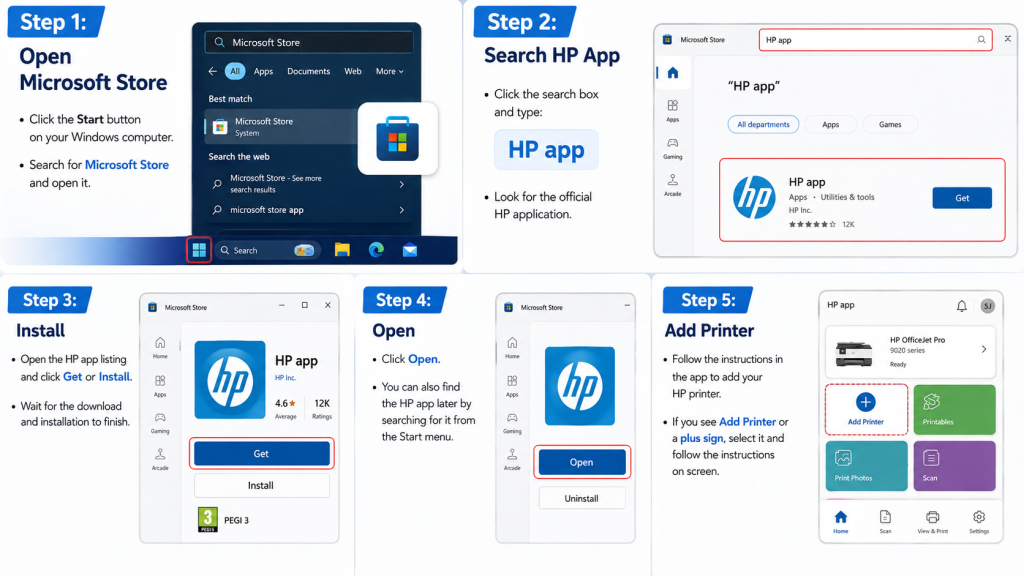
Installing the HP app on a Windows computer is straightforward.
1. Open Microsoft Store
Click the Start button and search for Microsoft Store.
Open the Microsoft Store from the search results.
2. Search for HP App
Click the search box in the Microsoft Store and type HP app.
Look for the official HP application.
3. Install the App
Open the HP app listing and click Get or Install.
Windows will download and install the application on your computer.
4. Open HP App
After installation is complete, click Open.
You can also find the app later by searching for HP app from the Windows Start menu.
5. Add Your Printer
Follow the instructions displayed inside the app to add your HP printer.
If you see Add Printer or a plus (+) button, select it and continue with the on-screen setup.
Once the printer is connected, you can use the available HP app features to print, scan, troubleshoot, and manage your printer.
How to Download the HP App on Android
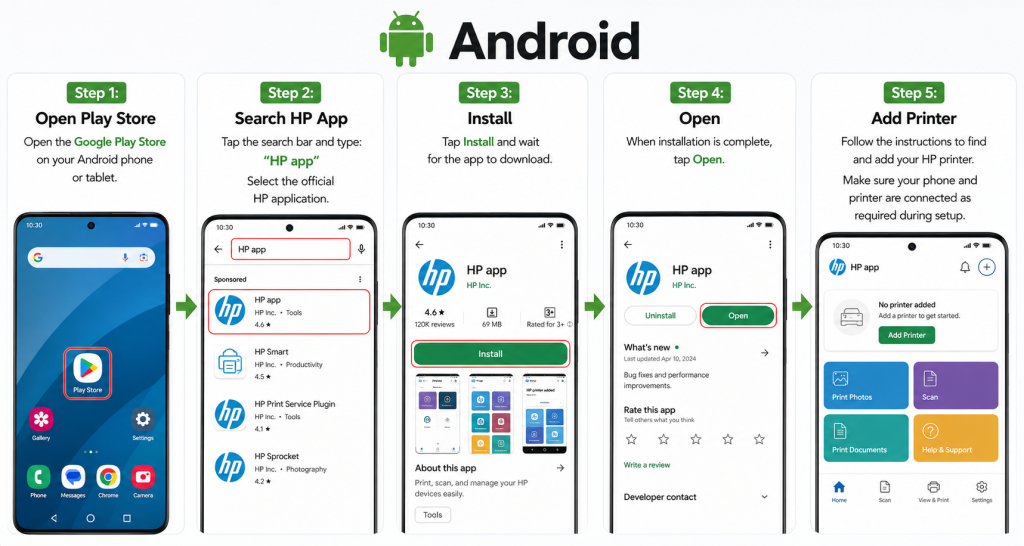
If you use an Android smartphone or tablet, you can install the HP app through Google Play.
1. Open Google Play Store
Open the Google Play Store on your Android device.
2. Search for HP App
Tap the search bar and enter HP app.
Select the official HP application from the results.
3. Tap Install
Tap Install and wait for the app to finish downloading.
The installation time will depend on your internet connection and device.
4. Open the App
Once installed, tap Open.
You can also launch the HP app later from your phone’s app list.
5. Connect Your Printer
Follow the instructions in the app to find and add your HP printer.
Depending on your printer model and setup, you may be asked to connect your phone and printer to the appropriate Wi-Fi network.
How to Download the HP App on iPhone
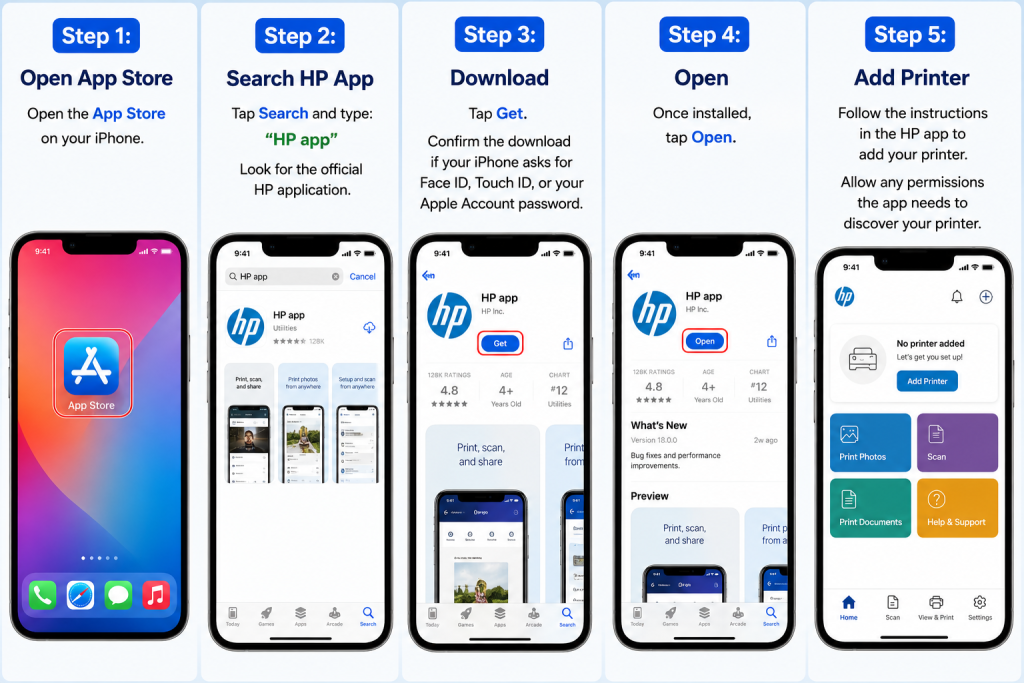
iPhone users can download the HP app from Apple’s App Store.
1. Open the App Store
Launch the App Store on your iPhone.
2. Search for HP App
Tap Search and type HP app.
Look for the official HP application.
3. Tap Get
Tap Get to begin the installation.
Your iPhone may ask you to confirm the download with Face ID, Touch ID, or your Apple Account password.
4. Open HP App
Once the installation finishes, tap Open.
5. Add Your HP Printer
Follow the instructions provided by the app to find and set up your printer.
If the app requests permission to discover devices or use other features, review the request and allow the permissions needed for your setup.
Can You Still Use HP Smart?
This is one of the most common questions from HP printer users.
The answer depends on your device, printer, and availability in your region. HP has transitioned supported users to the HP app, so new users should generally look for the HP app rather than trying to download an old HP Smart version.
If HP Smart is already installed on your device, you may see an update or transition to the new HP app.
HP App vs. HP Smart
The biggest difference is the name and the newer app experience.
| Feature | HP Smart | HP App |
|---|---|---|
| Printer setup | Yes | Yes |
| Printing | Yes | Yes |
| Scanning | Yes | Yes |
| Printer management | Yes | Yes |
| HP support | Yes | Yes |
| Current HP app | Older app | Newer replacement |
The exact features available can vary depending on your HP printer model, operating system, and region.
Where Should You Download the HP App?
For safety, it’s best to download the application from the official app store for your device.
- Windows: Microsoft Store
- Android: Google Play Store
- iPhone: Apple App Store
Avoid downloading unknown “HP Smart” installers or modified apps from random third-party websites.
Having Trouble Finding Your Printer?
If the HP app doesn’t detect your printer, first make sure the printer is turned on.
Also check your Wi-Fi connection and make sure you’re following the connection instructions shown in the app.
If you’re still having trouble, restart the printer and your phone or computer and try the setup again.
For more complicated connection problems, check HP’s support instructions for your specific printer model.
Final Thoughts
If you’ve been searching for HP Smart download, the most important thing to remember is that HP has moved to the HP app for supported devices.
Whether you’re using Windows 10, Windows 11, Android, or iPhone, the installation process is simple: find the HP app in the appropriate official app store, install it, open the application, and follow the instructions to add your printer.
Once everything is connected, you can use the app to access the supported printing, scanning, troubleshooting, and printer-management features.
Looking for more HP printer help? Keep following our tutorials for simple, step-by-step guides that make printer setup and troubleshooting easier.